
Virtual display
A headless rig with no monitor still gets a full 60fps screen — AltRDP creates the display the GPU draws to.
Remote desktop · Game streaming · On-screen AI
AltRDP streams a real Windows or Mac at 60fps — through a virtual display, keyboard and mouse, so it works even with no monitor plugged in. The same screen an AI agent can read and operate on its own.
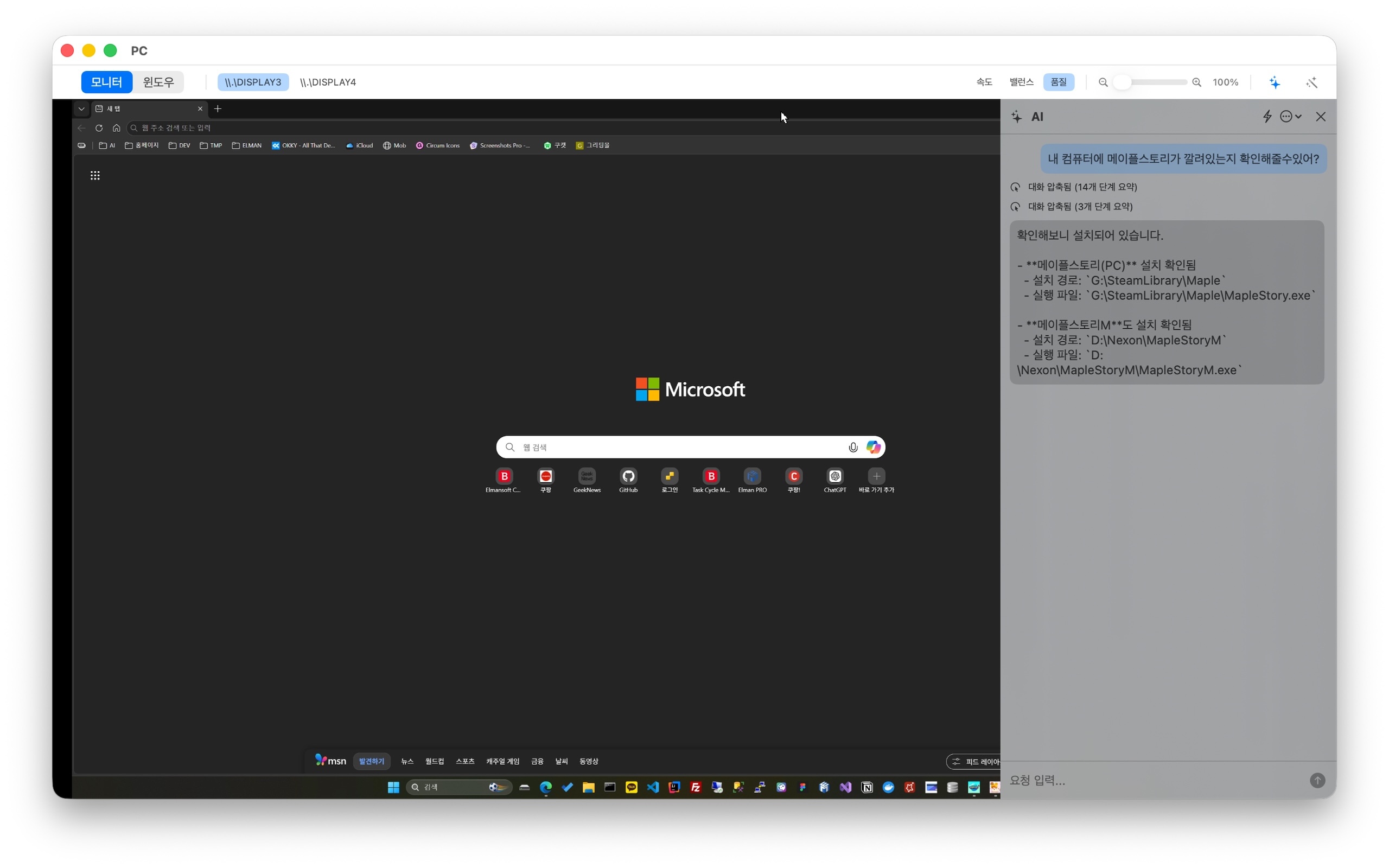
The AI agent
Most "AI assistants" hand you steps and leave the work to you. AltRDP's agent looks at the actual screen, then moves the mouse, types, runs commands and checks its own result — the same remote machine you'd be driving by hand, driven for you.
Every step starts from a real screenshot, so the agent works from what's actually there — not a guess about your setup.
Clicks, drags, scrolls, types, hits shortcuts with real modifiers. No special API on the remote side — it just operates the desktop.
When a terminal is the faster path, it opens one — bash or PowerShell on Windows — and reads the exit code to know if it worked.
For anything destructive or ambiguous it stops, shows a plan you can edit, and waits for your yes — instead of guessing and apologizing later.
Procedures it verifies once get saved, so a task you ask for twice goes faster the second time. You can also drop in your own skills.
It runs on prepaid credits through AltRDP, on OpenAI's GPT models — no ChatGPT sign-in. New accounts get 50 free credits: enough to feel out GPT-5.4-mini on real work. GPT-5.5 is stronger but hungrier — one big instruction can spend the lot.
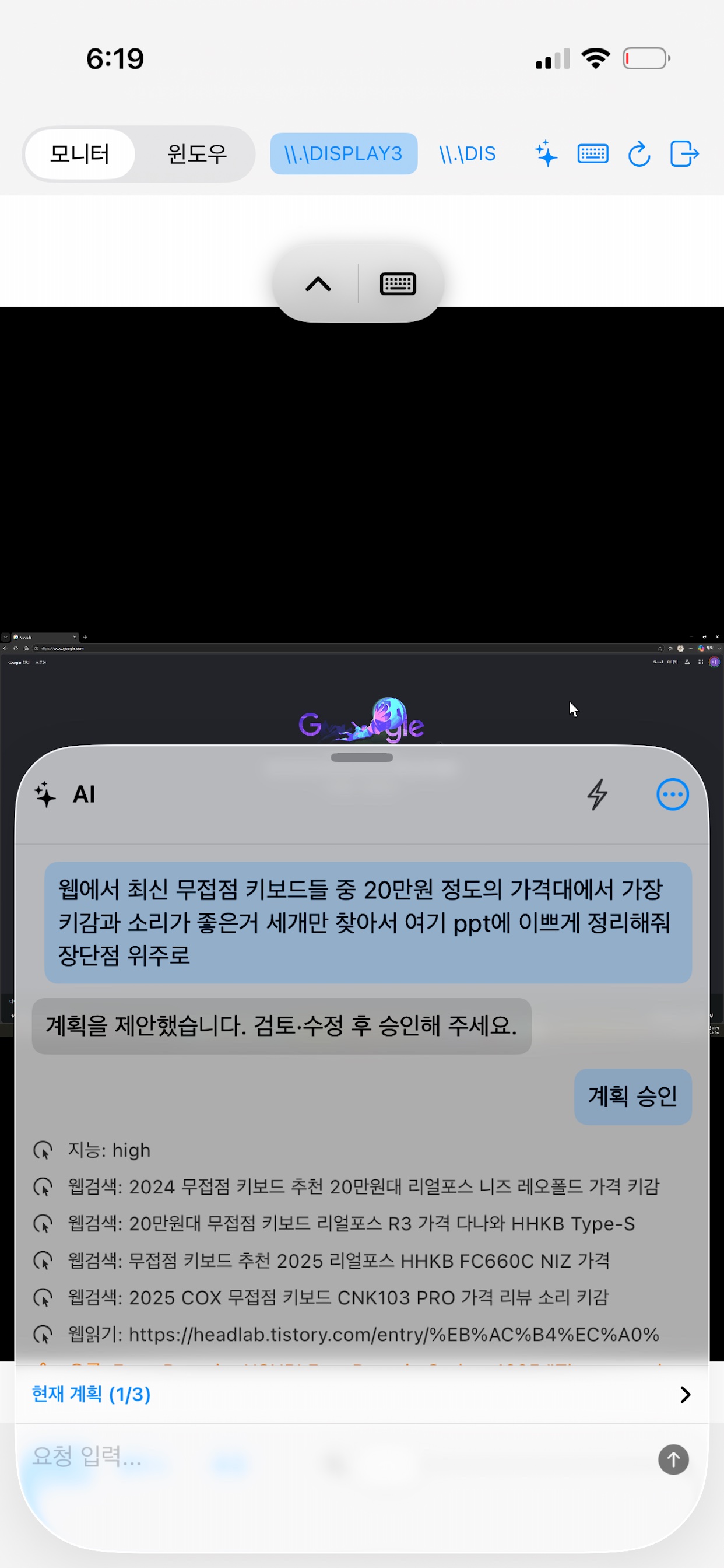
On the Mac and iOS apps today.
The remote desktop
A remote screen is only useful if it keeps up with you. These are the pieces that make AltRDP feel like the machine is in front of you.
A headless rig with no monitor still gets a full 60fps screen — AltRDP creates the display the GPU draws to.
A virtual keyboard and mouse drive the remote PC at the OS level, so keystrokes and clicks land exactly where you put them.
NVIDIA (NVENC) or AMD (AMF) does the H.264 work on the GPU. No discrete card? FFmpeg encodes in software instead.
The transport retransmits a lost packet only while it can still arrive on time, then jumps to a fresh frame — so cellular stays watchable instead of stuttering.
Switch between remote monitors or focus one. Pick Speed, Balance or Quality to match whatever connection you're on.
Build macros that watch the remote screen and act on it — pick a region, color or pixel as a trigger, then click, type, loop or branch with if/while. Bundle steps into reusable components.
Gaming
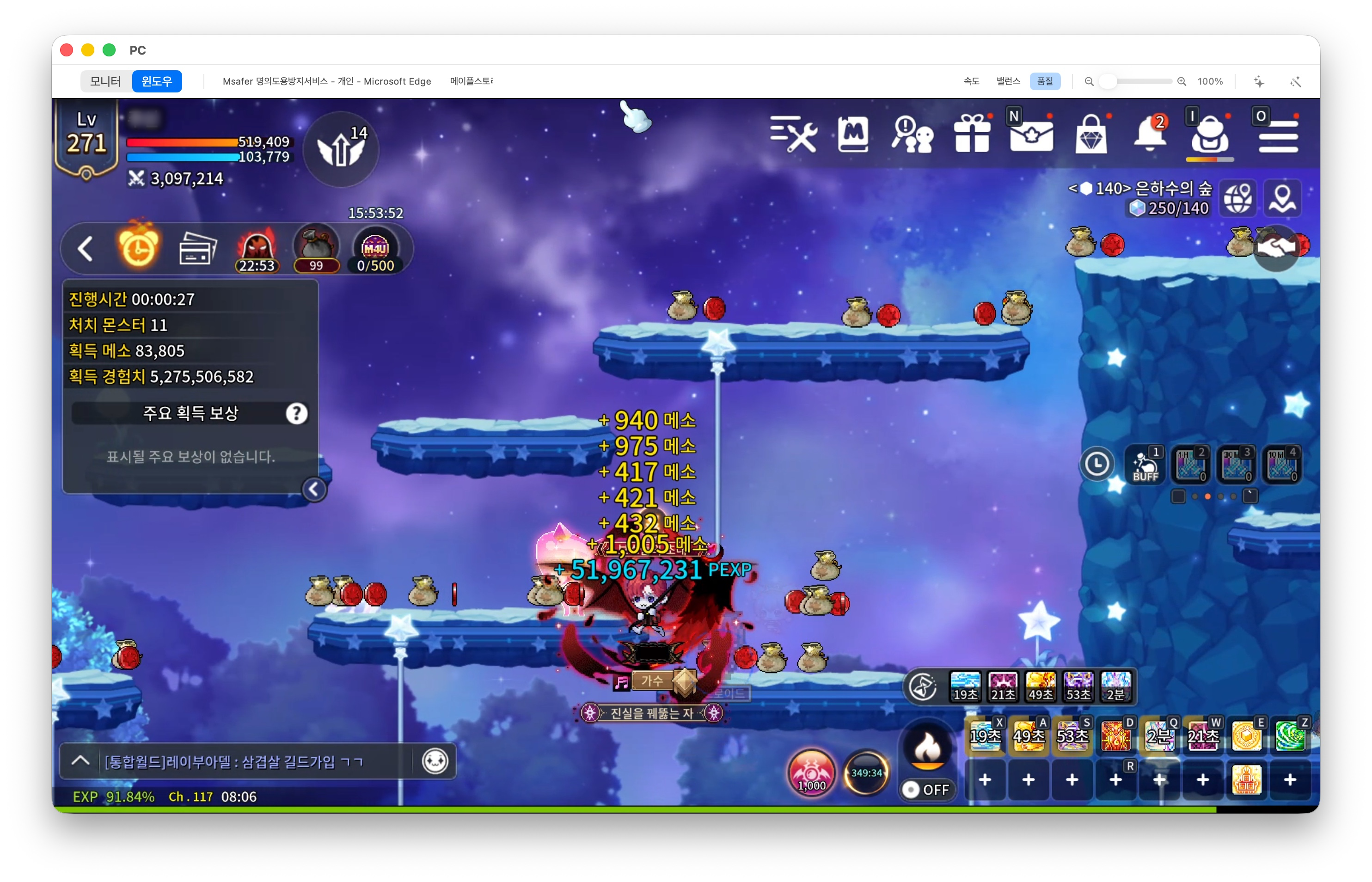
Virtual display, GPU encoding and a loss-aware transport were built for the same goal: a stream that answers your input now, not a beat later. Boot a headless rig at home, stream it to a laptop or an iPhone, and play.
Download
Run the server on the PC you want to reach. Run the client on whatever you're holding.
Setup
The easy way needs no router setup at all: turn on Cloud Connect and share a hash. Want a direct link instead? Forward two ports.
New on Windows and Mac: reach your server from anywhere without touching your router. Turn it on, share a hash, done — it works behind an ordinary home or office NAT.
altrdp-relay.udp.cc/c/<hash> and type the password. No port forwarding, ever.Your password never leaves your devices — the relay only forwards encrypted traffic, and video stays peer-to-peer. A few strict carrier networks aren't supported; the server tells you up front.
Or connect directly · advanced
altrdp.ini.example to altrdp.ini.altrdp.exe.Open the ports. Add inbound firewall rules for your TCP and UDP ports. On a home network without a VPN, forward both ports on your router too.
altrdp.ini and set ports + password — same as Windows.Can't connect? Walk through the three Grant permission menus first — and check port-forwarding if it's still quiet.
[auth]
password=your-password

[network]
port=8080      ; TCP
rtc_port=8081  ; UDP
This is the file you open in step 3 — identical on Windows and Mac. Two ports and a password, nothing more.
Optional · Windows without a GPU
No NVIDIA or AMD discrete GPU? Install FFmpeg first so the server can encode in software.
ffmpeg.org or gyan.dev.C:\ffmpeg.C:\ffmpeg\bin to PATH (System Properties → Environment Variables → Path → New).ffmpeg -version to confirm.Mac users · gaming tip
On a Mac, Ctrl + arrow keys are grabbed by Mission Control, so they never reach your game. Open System Settings → Keyboard → Keyboard Shortcuts → Mission Control and turn off these four: Mission Control, Application windows, Move left a space, and Move right a space. Now the arrows go straight to the game.